
AUTOREDLINE BLOG / ECO RECIPE
Prepare an ECO redline package from two mechanical drawing PDFs
Use a revision pair to prepare a drawing redline, review the proposed changes and assemble the files an engineering change reviewer needs. Follow the actual generated output in our processor-housing example.
1. Identify the baseline and proposed revision
To prepare an engineering change order (ECO) redline from PDFs, start with the original and proposed drawing files. Generate the marks, check them against both inputs, correct the result, then include the reviewed redline and source references in your review package. Native CAD files are not required for this comparison.
This example uses a public SM-0004 processor-housing drawing by Kayode Orimoloye / desireloft with a synthetic revision. The test sheets identify Revision A and proposed Revision B. They do not represent the source author's actual revision history, an approved design change or a customer ECO. Source notices remain in the files.
Before processing your own pair, check the drawing number, revision, sheet coverage, units and orientation. Record which file is the baseline and which is the proposal. A reversed input order changes the meaning of additions and deletions.
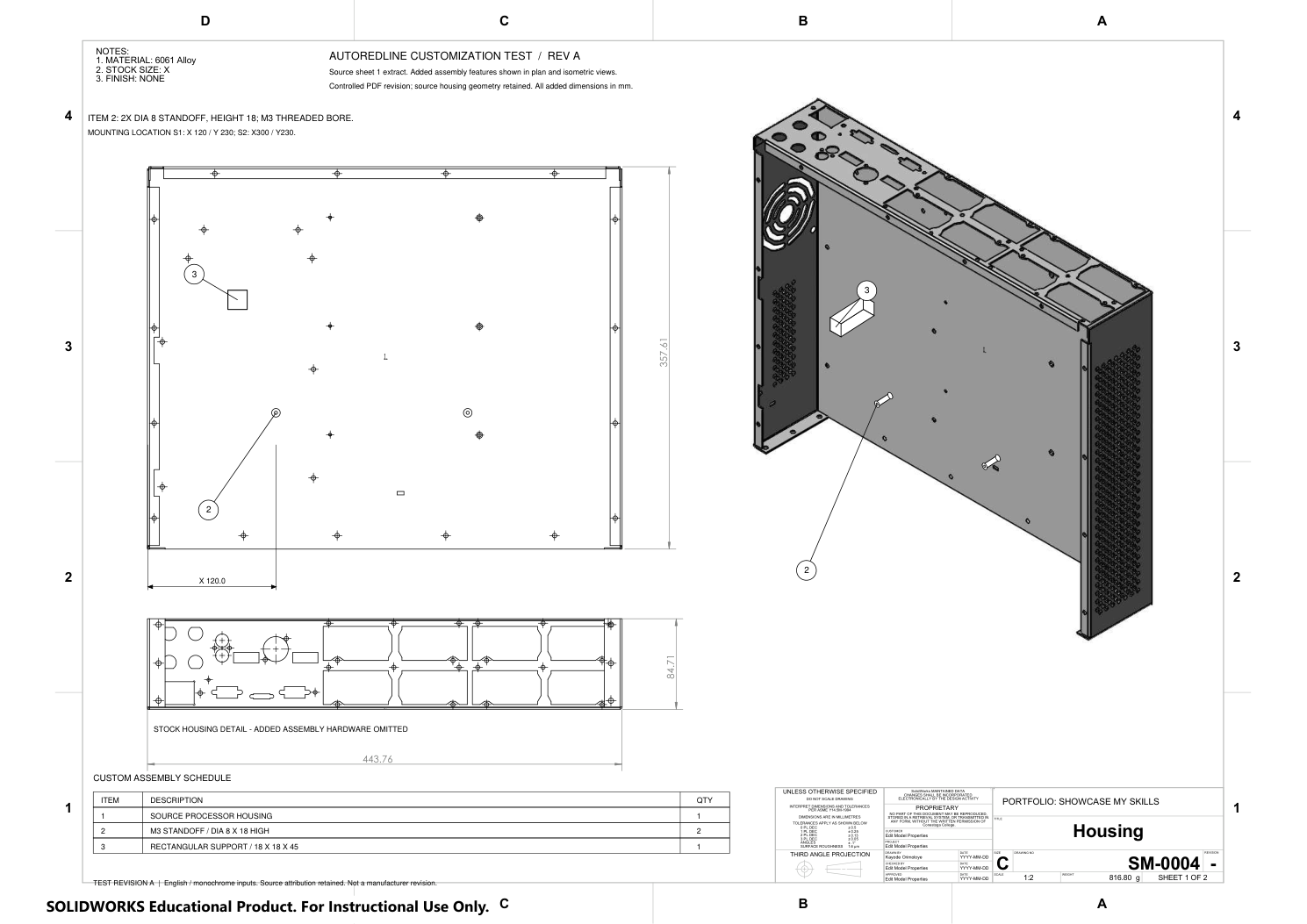
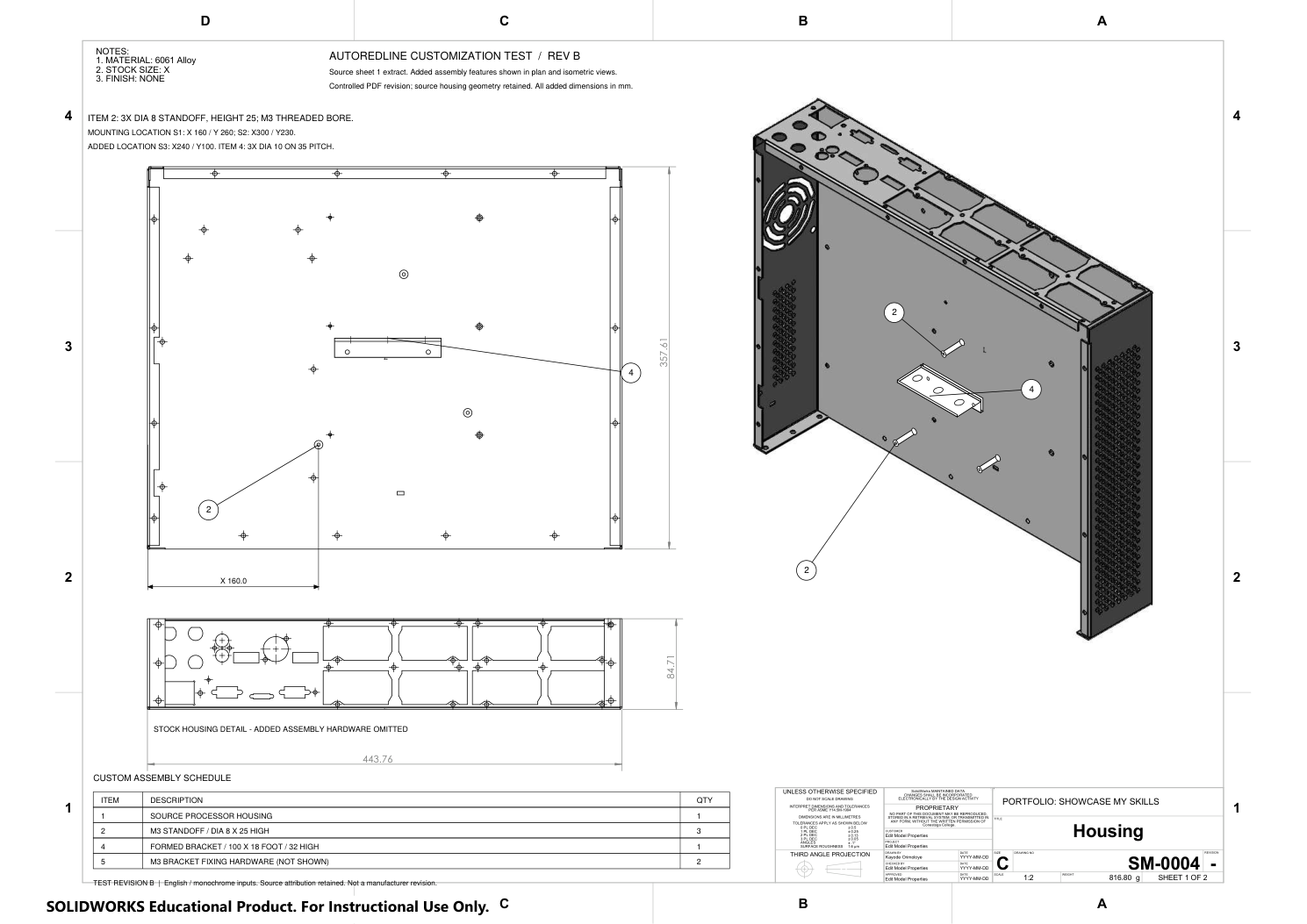
2. Generate proposed redline marks
In AutoRedline's comparison workspace, upload the original and revised PDFs in their respective positions. Check the page selection and credit quote before starting. The comparison produces proposed additions, strikeouts and geometry marks on the original drawing.
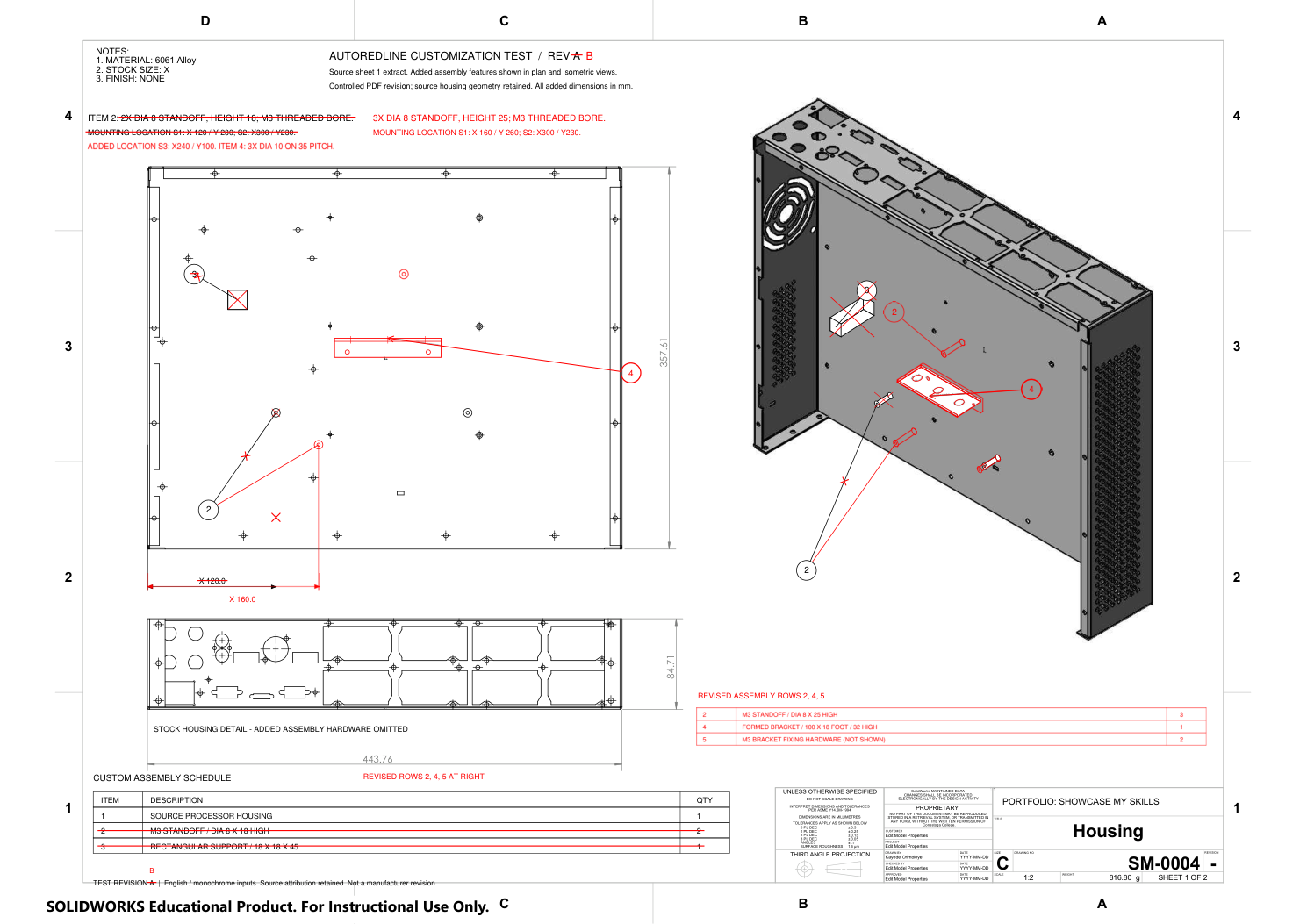
The PDF below is the saved engine output for this pair, before edits in the public demo. It shows the old standoff note crossed out, the replacement in red, the removed support crossed out and added bracket geometry. Inspect the marks against both sources rather than treating a completed generation as a completed engineering review.
3. Build a change ledger from the source pair
Use a short ledger to make the proposal easy to check. The entries below describe the known synthetic changes and where the generated marks communicate them. They are a worked review aid, not an automatically generated ECO record.
| Change | Original | Proposed | Inspect in generated output |
|---|---|---|---|
| Standoff requirement | 2X DIA 8 STANDOFF, HEIGHT 18 | 3X DIA 8 STANDOFF, HEIGHT 25 | The old callout is struck through and the replacement is added in red. Height notes identify affected standoffs in the drawing views. |
| Standoff location S1 | X 120 / Y 230 | X 160 / Y 260 | The old location note and X 120.0 dimension are struck through. The new location, dimension and standoff are marked in red. |
| Rectangular support | Item 3: rectangular support, 18 × 18 × 45 | Support removed | The removed support is crossed out in the plan and isometric views, and its schedule row is struck through. |
| Bracket and schedule | No bracket or bracket-fixing hardware | Item 4: formed bracket; item 5: M3 fixing hardware | Bracket geometry and callouts are added in red, with replacement schedule rows for items 2, 4 and 5. |
For the standoffs, check quantity and height together: two at 18 mm become three at 25 mm. For S1, check both the location note and the view: X120/Y230 becomes X160/Y260. Verify that the support removal is represented in the plan, isometric view and schedule, and that the bracket and hardware agree with the replacement rows.
Review the entire sheet as well as these entries. A selected change ledger is not proof that every mark is correct or that no change was missed. In your own package, add drawing locations, unresolved questions and the reviewer's disposition to the ledger.
4. Review and correct the proposed marks
Open the interactive redline example to try the review controls. In the workspace, inspect each mark, correct its text or placement, remove unnecessary marks and add missing changes before exporting.
- Can a reviewer read the old requirement and its replacement without a separate explanation?
- Does a moved or added feature have enough drawing context to identify its intended position?
- Are all affected views, callouts and schedule entries consistent with the revised PDF?
- Do marks obscure dimensions, overlap one another or imply a change that the proposal does not contain?
Keep the first generated result if you want to assess cleanup work, and record the corrections made before issuing the reviewed version. The static downloads in this article remain the saved example output. Marks are editable inside AutoRedline; this does not establish native annotation editing in other PDF editors.
5. Export and assemble the review package
Export the reviewed redline and open the PDF independently. Check the sheet size, text, linework, strikeouts and red additions at a useful zoom and in your intended print format. Confirm that every required sheet is present.
For a simple review handoff, keep these items together using your team's document-control conventions:
- Baseline PDF: identify the drawing number, revision and source record used for comparison.
- Proposed PDF: identify its revision or working-copy status, author and date.
- Reviewed redline PDF: identify the revision pair and the person/date of the markup review.
- Change ledger: explain the proposal, affected views and remaining questions.
- ECO record: retain the change reason, affected items and required dispositions/approvals in your existing ECO or PLM process.
AutoRedline generates the drawing markup. It does not create engineering approval or release the design. An engineer must assess the proposal and your controlled change process determines what is approved for manufacturing.
6. Hand the reviewed requirements to Quality
The housing proposal changes quantities, locations and hardware. Quality needs the applicable drawing revision and the confirmed change scope when deciding which inspection records need attention. Do not treat a red mark as an automatic decision about partial or full FAI requirements.
AutoRedline's separate FAI workflow starts from one drawing PDF to prepare balloons and inspection Excel. The FAI walkthrough shows that process on a different synthetic mounting block. It is not an automatic transfer of this housing's redline marks into an inspection plan.
Compare your drawing PDFs, or read the engineering redline guide for more on drawing conventions and review context. Use current pricing and drawing-handling information when evaluating your own files.