
Engineering drawing automation for design and quality teams.
Review drawing changes.
Prepare for inspection.
Generate additions and strikeouts from two mechanical drawing PDFs, or start with one drawing to prepare FAI balloons and a matching inspection worksheet. Review, edit and export the results in your browser.
Your drawings stay yours. Encrypted storage. Retention you control. Security & confidentiality
600 free credits to get started · No credit card required
GENERATE. REVIEW. MAKE THE FINAL MARK.
AutoRedline generates redlines.
Make the final mark.
AutoRedline prepares the first pass of drawing change markup for you to review and edit. Inspect the generated additions and strikeouts against both revisions before exporting your PDF.
Inspect actual generated output and download the source PDFs.
- 01
Start with the changes already marked
Upload the original and revised PDFs. AutoRedline compares the drawings and marks detected changes for review.
- 02
Review each change in context
Move between original, revised, and redline views. Check the proposed marks against both drawings and decide what to keep.
- 03
Edit the marks. Add your own.
Correct or remove generated marks, or create your own with text, arrows, and markup tools. Adjust their placement, then export the reviewed PDF for your ECO package.
FIRST ARTICLE INSPECTION PREPARATION
One drawing.
A connected inspection plan.
Generate balloons for dimensions, geometric tolerances and surface requirements. Each number connects to a row in your inspection Excel file, with nominal values and applicable limits.
Add, remove or move balloons in the review workspace, then export the drawing and worksheet together.
Explore FAI preparation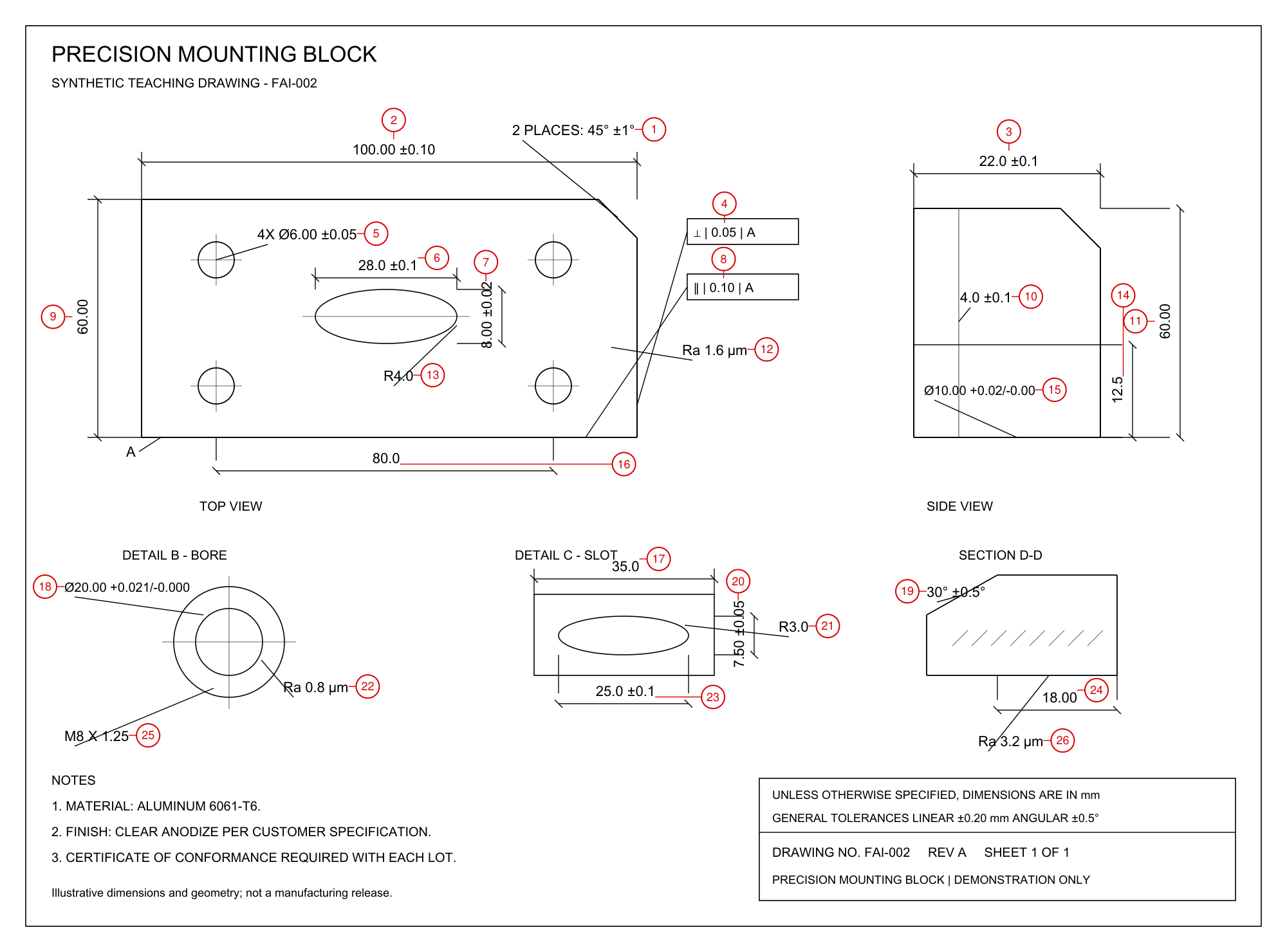
FROM THE BLOG
Drawing review and inspection preparation.
FAI walkthrough
PDF to inspection Excel: a worked FAI preparation example
Trace callouts into actual generated balloons and Excel rows, including repeated features, geometric controls and manufacturing checks.
Read the articleECO recipe
Prepare an ECO redline package from two mechanical drawing PDFs
Review a housing revision pair, inspect the generated redline and assemble the files and change ledger for an engineering review.
Read the articleFirst article inspection
Automatic drawing ballooning and FAI software: PDF to inspection Excel
Compare published ballooning workflows, inspect generated PDF and Excel files, and evaluate extraction, tolerances and matched inspection rows.
Read the articleDrawing comparison
Pixel diff vs engineering redline: what is the difference?
See why an unchanged moved view can trigger a pixel diff, and how a reviewed redline communicates real drawing changes.
Read the articleEngineering change
What is an engineering redline, and why does it matter?
How redlines connect previous and proposed drawing requirements, with practical examples for ECO and Quality review.
Read the articleWHY ENGINEERING TEAMS USE REDLINES
A clearer way to discuss a drawing change.
A redline is more than colored markup. It gives reviewers a shared view of what changed, where it changed, and what needs to be checked before the next revision is released. Read the complete guide to engineering redlines. See how redlines differ from pixel diffs and PDF overlays.
- What is an engineering redline?
- An engineering redline is a marked-up drawing used to communicate a proposed or required change. A useful redline does not simply say that something changed. It points to the affected feature and makes the previous and proposed information understandable in the drawing itself, so the next reviewer does not have to reconstruct the change from a sentence, an email, and two separate files.
- Why is a written change description not always enough?
- A sentence can describe the intent while leaving important questions unanswered. “Increase the hole to Ø6.5,” for example, may not identify which hole, what the old diameter was, whether the quantity callout also changed, or which other views show the same feature. A redline connects the instruction to its exact location and surrounding drawing context.
- How is a redline different from CAD markup or compare?
- CAD tools can find differences or place numbered change markers beside a feature. Outside the native CAD or PDM system, however, a marker may not show the previous requirement or make clear which revision it was created against. A reviewed redline keeps the relevant before-and-after information in a portable drawing, helping Engineering, Quality, Manufacturing, and suppliers review the change and investigate later problems without reconstructing the history from several files.
- When is a redline most useful?
- Teams often prepare redlines after prototype builds, design reviews, supplier feedback, manufacturability changes, or corrections to dimensions, tolerances, notes, and geometry. They are especially useful when a small change appears in several views or affects related callouts that can be missed when the revisions are reviewed separately.
- How does a redline help Engineering and Quality work together?
- Engineering can use the redline to explain the proposed design change, while Quality can use the same document to identify affected characteristics, inspections, or test requirements. Manufacturing and suppliers can assess process impact at the same time. Feedback stays attached to a specific feature instead of becoming another interpretation of a general change request.
- Does an ECO-ready redline mean the change is approved?
- No. The exported PDF is an input to your engineering change process. Your team still checks completeness, resolves discrepancies, and approves the release.
- Do I need the original CAD files?
- No. AutoRedline starts with the original and revised drawing PDFs, so reviewers do not need a connection to the authoring CAD system. It compares the two revisions and proposes redline marks that you can keep, edit, remove, or supplement before export.
- How should I test it on our drawings?
- First, explore the prepared example to see the review workspace. Then use a revision pair your team has already reviewed. Compare against your known changes, record anything missed or unnecessary, and check the exported PDF.
- Can I prepare first article inspection documents too?
- Yes. Start with one drawing PDF to generate inspection balloons and a matching Excel worksheet. Review and edit both in the workspace before export. Explore FAI preparation and inspect the saved generated files. Measurements and inspection approval remain with your team.
- Does AutoRedline check drawings against standards?
- Standards checking is planned and is not available in AutoRedline today. We plan to support drawing reviews against selected standards and company rules. No release date is announced.
- How do you protect confidential drawings?
- Your drawings remain yours. Files are encrypted at rest and transferred over HTTPS. Access is controlled by workspace membership, and owners choose retention or delete drawings. We do not sell drawings or use them to train shared AI models. Read about processing, access and recovery copies on our security & confidentiality page.
BACK TO WHAT YOU DO BEST
Less manual drawing work.
More time for engineering.
Prepare redline marks or FAI documents from your drawing PDFs. Review the results and export the files your engineering and quality teams need.
600 free credits to get started · No credit card required · Review and exports included